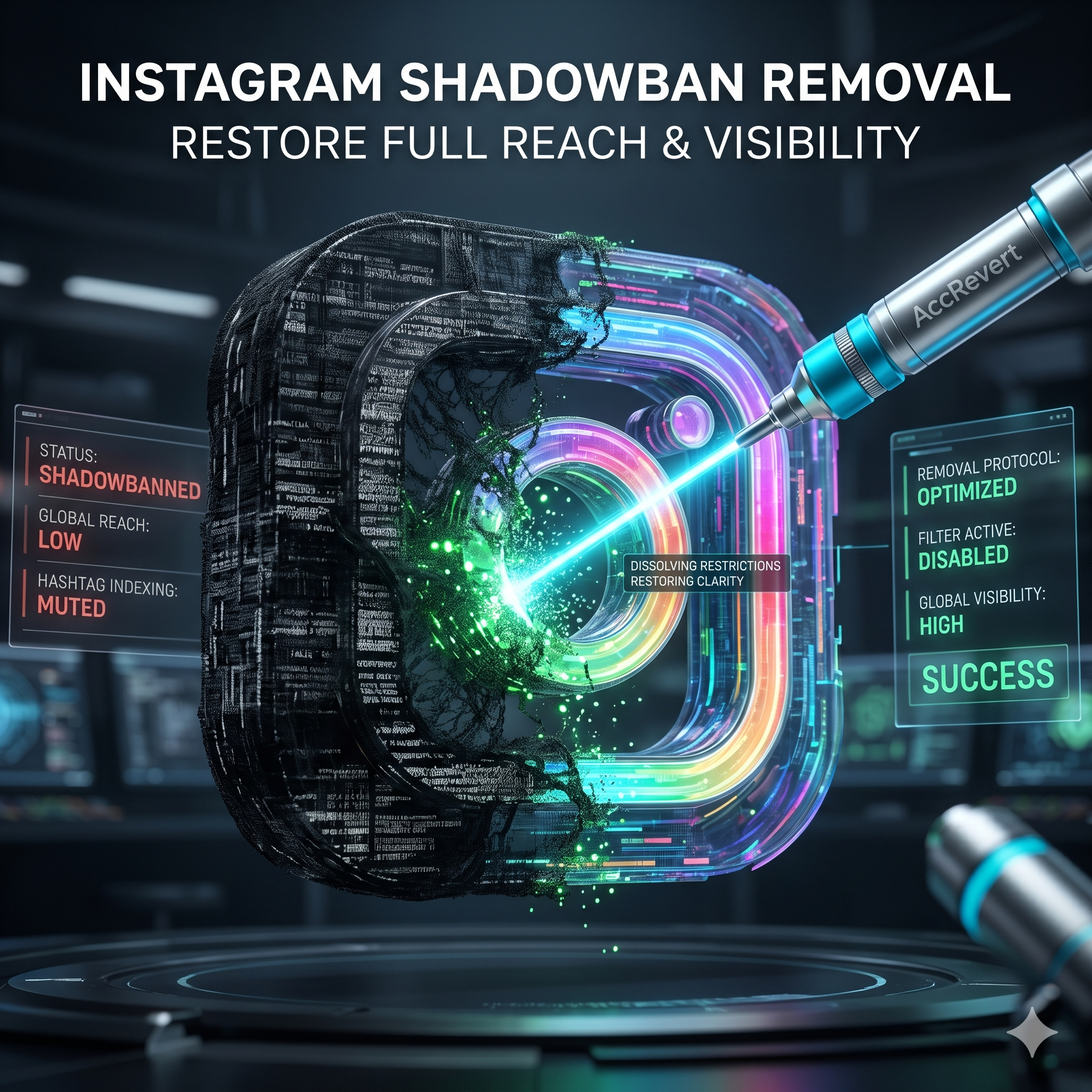
An Instagram shadowban quietly limits your reach without any notification — your posts stop appearing in hashtag searches and on Explore for people who don’t follow you. Engagement drops, and you have no idea why. The fix: stop the behaviors Instagram’s AI flags, take a short posting break, and clean up your hashtags and connected apps. Most shadowbans lift within 1–2 weeks once the triggering behavior stops.
How to Confirm You’re Shadowbanned
- Post a photo using 3–5 specific, less-common hashtags.
- Ask a friend who does not follow you to search those exact hashtags.
- If your post does not appear in the hashtag feed for that non-follower, you are likely shadowbanned.
Also check Settings → Account → Account Status — Instagram now surfaces some content restrictions there directly.
Common Shadowban Triggers
| Trigger | Why Instagram penalizes it |
|---|---|
| Banned hashtags | Some tags are tied to spam or inappropriate content |
| Repetitive hashtag sets | The same 30 tags on every post looks automated |
| Third-party automation | Auto-like/follow/comment tools violate the Terms |
| Rapid follow/unfollow | A known spam pattern |
| High report rate | Multiple reports reduce your distribution |
The Shadowban Removal Protocol
- Take a 48–72 hour posting break to let the algorithm reset.
- Revoke third-party apps: Settings → Security → Apps and Websites → remove anything suspicious.
- Vary your hashtags: use different sets each post, mix popular and niche tags, and keep to 10–15 relevant ones.
- Drop banned hashtags: if a tag shows “Posts for this hashtag are currently hidden,” stop using it.
- Resume with quality: post manually, reply to comments, and focus on content that earns saves and shares.
Long-Term Prevention
- Post consistently but not excessively (1–2 times a day max).
- Engage genuinely — reply to comments and DMs.
- Use hashtags relevant to your content, not just the most popular ones.
- Never use automation tools that aren’t officially approved.
- Check your Account Status page regularly.
When a Shadowban Won’t Lift — How AccRevert Helps
If your reach stays suppressed for weeks despite doing everything right, the cause may be a deeper account-level restriction, not a simple hashtag issue. AccRevert runs a professional account analysis to identify the exact trigger and the fastest path back to full distribution — a flat $299 to start, success-based after. See our Instagram recovery service.
Shadowban vs Ban vs Restriction — Know the Difference
These three are often confused. A shadowban silently limits reach but you can still post and log in normally. A restriction shows up in Account Status and may block specific features (like adding links or going live) for a set period. A ban disables the account entirely. The fix differs for each: shadowbans clear by changing behavior and waiting, restrictions expire or can be appealed in Account Status, and full bans require the formal appeal process. Correctly identifying which one you have is the first step to fixing it.
Frequently Asked Questions
How long does an Instagram shadowban last?
Most lift within 1–2 weeks once you stop the triggering behavior and take a short posting break. Persistent suppression beyond that usually signals a deeper restriction.
How do I know for sure I’m shadowbanned?
Have a non-follower search a specific hashtag you used. If your post is missing from that hashtag feed, you are likely shadowbanned. Account Status may also show a restriction.
Do the same 30 hashtags on every post cause a shadowban?
Yes — identical hashtag sets look automated. Rotate varied, relevant tags (10–15 per post) instead of copy-pasting the same block every time.
Can automation apps cause a permanent shadowban?
They can cause lasting suppression and even account restrictions. Revoke all auto-like/follow/comment tools immediately — they are a top trigger.
Final Checklist
- Confirm the shadowban with a non-follower hashtag test.
- Take a 48–72 hour break and revoke third-party apps.
- Rotate varied hashtags and drop any “hidden” tags.
- Escalate if suppression persists beyond two weeks.
Shadowban killing your reach? Submit your case to AccRevert — pay only on success.
Related Articles
Stop guessing and document the case properly.
Our team can review the account history, available ownership evidence and the recovery steps already attempted.
How to Verify Your Identity on Instagram Without an ID
Instagram Hacked and Email and Password Changed? How to Recover