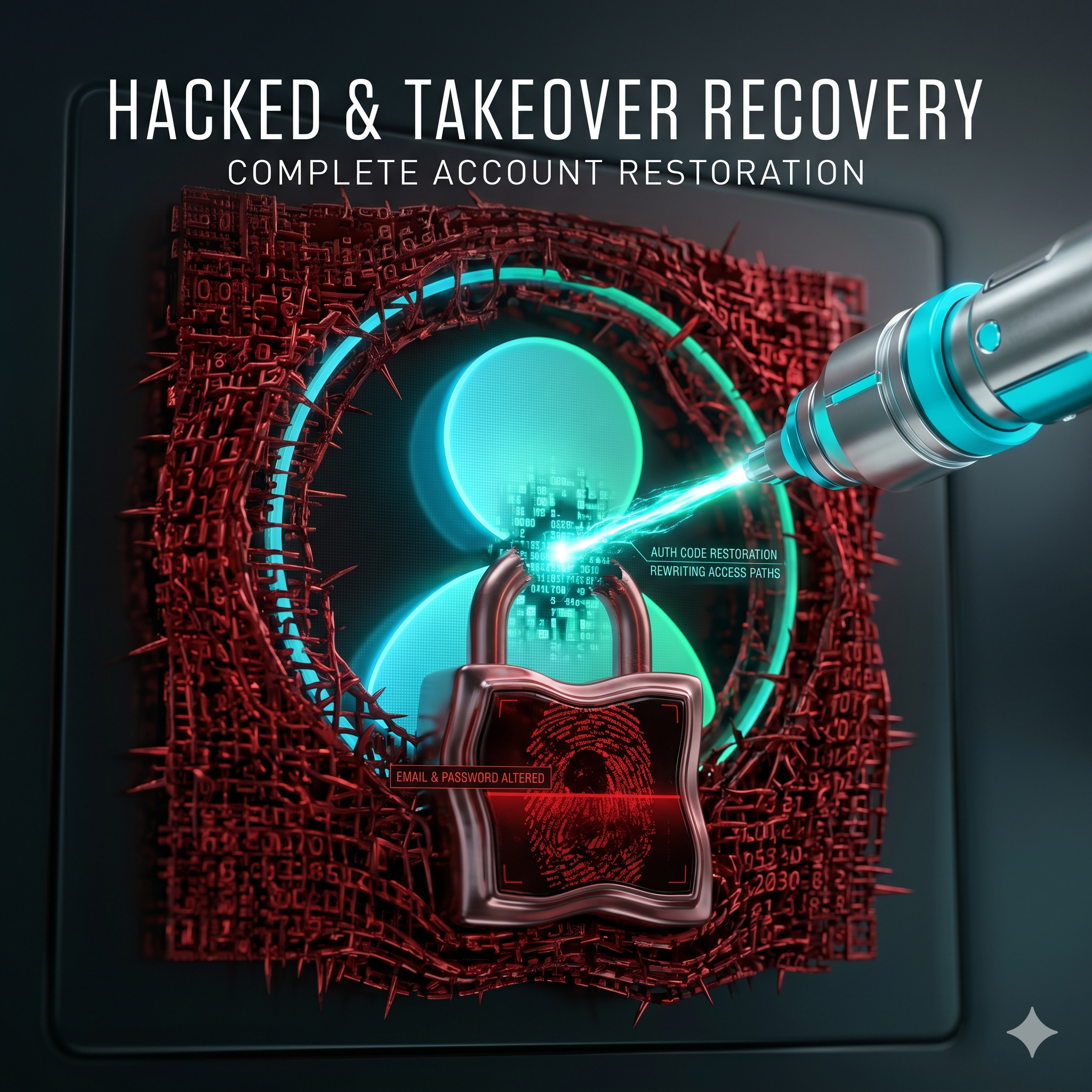
When a hacker changes your Instagram email and password, you have a narrow but real recovery window. The single most important tool is the security notification Instagram sends to your ORIGINAL email the moment those changes are made — it contains a one-click option to reverse them. Miss that window, and recovery shifts to identity verification. Here is exactly what to do, in order, starting now.
The Critical First Step: Check Your Original Email
When the hacker changes your email, Instagram automatically emails your original address a notice titled something like “We noticed a change to your Instagram account.” That message contains a “Revert this change” link:
- Open your original email inbox and find the Instagram security notification.
- Click “Revert this change” — it immediately resets the email back to yours.
- Then change your password right away.
This link is time-limited — usually about 24 hours. If it has expired, move to the next steps.
Recovery After the Window Closes
- On the login page tap “Forgot Password?”
- Enter your username, phone, or original email.
- If you cannot receive the reset (because the email was changed), tap “Need more help?”
- Instagram will ask for a selfie video — a slow turn of your face side to side — which it matches to your account’s photos.
- If matched, you receive a recovery link at a new email you provide.
If the Selfie Verification Fails
Selfie matching fails when the account has few photos of you, the hacker deleted your images, or the AI cannot confidently match. In that case:
- Submit ownership evidence through the identity-verification flow.
- Provide every ownership proof you can: username, creation date, devices used, and any linked Facebook account.
- Consider professional help to compile the forensic evidence package that gives Instagram confidence to restore access.
What the Hacker Is Doing While You Wait
Speed matters because a hijacker moves fast: they change your email and password, enable their own two-factor authentication to lock you out, then use your account to message your followers with scams or crypto pitches, and sometimes delete your photos to defeat selfie verification. Every hour you delay gives them more time to entrench. That is why the very first move — checking your original inbox for the revert email — is so valuable: it can undo the takeover in a single click before any of the rest happens.
Secure the Account After Recovery
- Enable two-factor authentication with an authenticator app, not just SMS.
- Set a strong, unique password used nowhere else.
- Remove all third-party apps under Settings → Security → Apps and Websites.
- Review Login Activity and end any unknown sessions.
When You’re Locked Out Completely — How AccRevert Helps
If the revert email is gone, selfie verification keeps failing, and the hacker enabled their own 2FA, you need escalation. AccRevert builds the ownership case and pushes it through Meta’s security channel — a flat $299 to start, success-based after recovery. See our Instagram recovery service.
Frequently Asked Questions
The hacker changed my email and password — can I still get in?
Yes. First check your original inbox for Instagram’s “revert this change” email (valid ~24 hours). If it has expired, use the “Need more help?” selfie-verification flow, and escalate if that fails.
How long do I have to reverse the email change?
The revert link is typically valid for about 24 hours, which is why speed is critical. After it expires, recovery moves to identity verification.
What if the hacker also turned on two-factor authentication?
Then self-service tools will reject you and you will need identity verification plus, often, professional escalation using ownership evidence to override the hacker’s 2FA.
How do I stop this from happening again?
After recovery, enable authenticator-app 2FA, set a unique password, remove unknown connected apps, and keep your recovery email secured with its own 2FA.
Final Checklist
- Check your original email for the “revert this change” link first.
- If expired, use “Need more help?” selfie verification.
- Provide full ownership evidence if selfie matching fails.
- After recovery: 2FA, unique password, remove apps, end sessions.
Instagram hacked and everything changed? Time is critical — submit your case to AccRevert. Pay only when we succeed.
Related Articles
Stop guessing and document the case properly.
Our team can review the account history, available ownership evidence and the recovery steps already attempted.
How to Verify Your Identity on Instagram Without an ID
Recover Deleted Instagram Account Within 30 Days