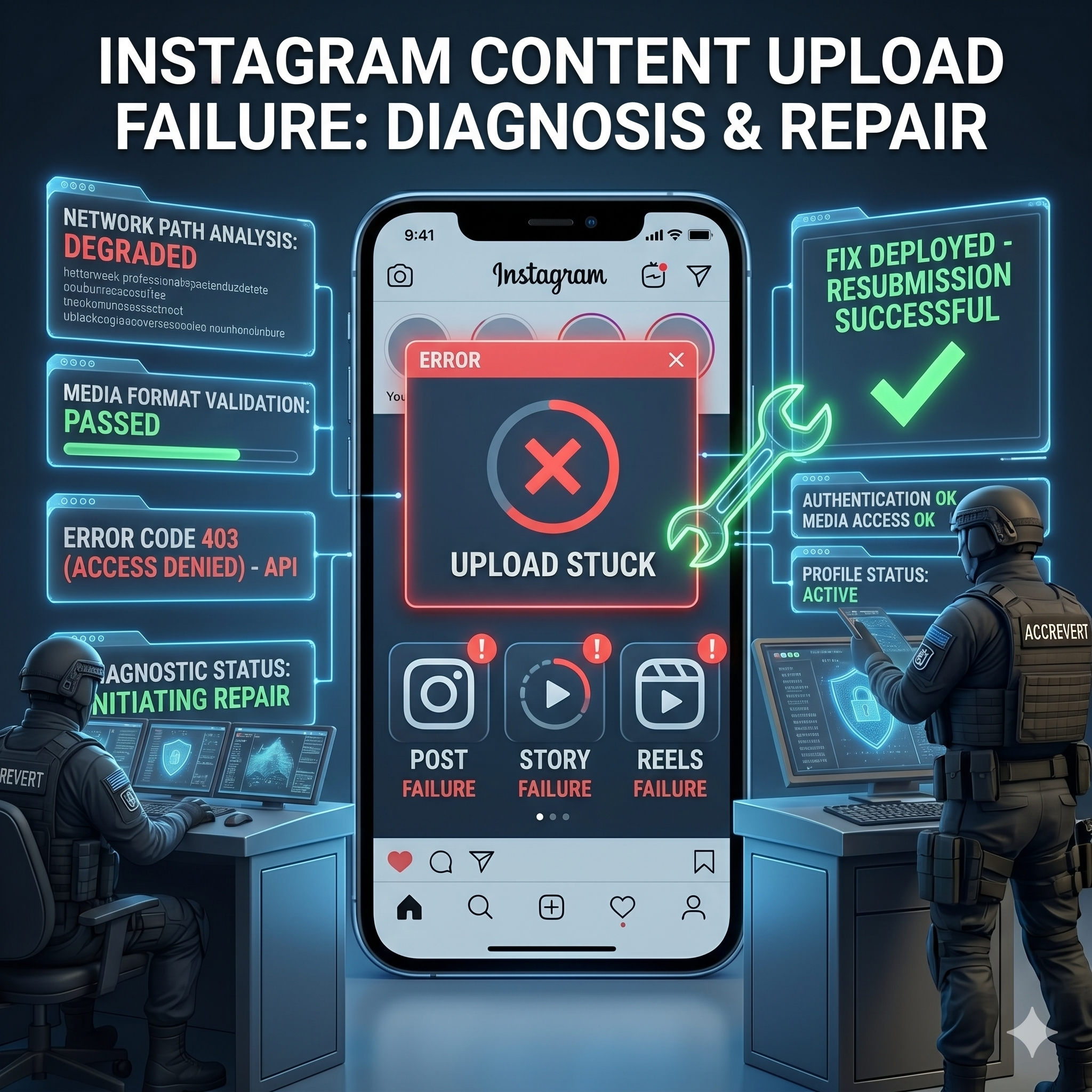
When Instagram refuses to upload your posts, Stories, or Reels, the cause is almost always one of four things: a connectivity problem, corrupted app cache, an account-level restriction (a shadowban or rate-limiting), or a bug in the current app version. The key is to diagnose systematically — start with the simplest fix and work toward account-level solutions instead of guessing.
Quick Diagnosis: Which Problem Do You Have?
| Symptom | Likely cause | First fix |
|---|---|---|
| Upload stuck at 0% or fails instantly | Connectivity | Switch between Wi-Fi and mobile data |
| Upload reaches ~90% then fails | File size or format | Compress the video or convert the format |
| Upload “succeeds” but the post never appears | Shadowban or pending review | Check account status; drop banned hashtags |
| The same error appears every time | App bug or server outage | Update the app; check Instagram’s status page |
Device-Level Fixes
- Clear the app cache: Android → Settings → Apps → Instagram → Storage → Clear Cache. On iOS, delete and reinstall the app.
- Check file requirements: videos under 4GB, MP4 with H.264 preferred, up to 60 minutes for feed posts.
- Update Instagram — many upload bugs are fixed in the latest version.
- Free up storage — keep at least 1GB free during upload.
Account-Level Fixes
- Check for a shadowban: from an account that does not follow you, search a specific hashtag you used — if your post is missing, you may be shadowbanned. Stop using repetitive or flagged hashtags.
- Review Account Status: Settings → Account → Account Status shows content flags and restrictions directly.
- Remove third-party apps: unauthorized schedulers or automation tools frequently trigger upload restrictions — revoke them.
When It’s Actually an Account Restriction — How AccRevert Helps
If uploads keep failing after every device fix, or your Account Status shows restrictions you do not understand — especially on a business account losing revenue — the problem is account-level, not technical. AccRevert diagnoses the root cause and resolves the underlying restriction through the right Meta channel. A flat $299 to start, success-based after. See our Instagram recovery service.
Reels and Stories-Specific Failures
Reels and Stories have their own quirks. If a Reel uploads but has no sound, the audio track was likely flagged for copyright — swap in a track from Instagram’s own music library. If a Reel is stuck “processing,” its resolution or length may exceed limits; export at 1080p, under 90 seconds, and try again. For Stories that fail, an unstable connection mid-upload is the usual culprit — Stories are time-sensitive and abort quickly, so upload on strong Wi-Fi. And if only links or stickers fail to attach, that is an account-permission limit (some link stickers require a minimum follower count or a verified/business account), not a bug — check your Account Status to confirm which features your account is eligible for.
Frequently Asked Questions
Why does my Instagram upload finish but the post never shows up?
That pattern usually means a shadowban or a pending content review — not a technical failure. Check Account Status and stop using flagged or repetitive hashtags, then wait for distribution to recover.
How do I fix an upload that fails at 90%?
It is almost always a file issue. Compress the video, convert it to MP4/H.264, keep it under 4GB, and ensure you have free storage and a stable connection.
Can third-party apps stop my Instagram uploads?
Yes. Unofficial schedulers and automation tools can trigger account restrictions that block uploads. Revoke them under Settings → Security → Apps and Websites.
When should I get professional help for upload failures?
When device fixes do not work, your account shows unexplained restrictions, or a business account is losing reach and revenue — that points to an account-level issue best resolved through escalation.
Final Checklist
- Test connectivity and switch networks first.
- Clear cache, update the app, and check file format/size.
- Check Account Status and remove third-party app access.
- Escalate if restrictions persist on a business account.
Persistent upload issues hurting your brand? Submit your case to AccRevert — pay only on success.
Related Articles
Stop guessing and document the case properly.
Our team can review the account history, available ownership evidence and the recovery steps already attempted.
How to Verify Your Identity on Instagram Without an ID
Instagram Hacked and Email and Password Changed? How to Recover